
Getting Started
- Define Your Tagging Strategy
There are many guides—Microsoft’s best practices are a great starting point:
https://learn.microsoft.com/en-us/azure/cloud-adoption-framework/ready/azure-best-practices/resource-tagging - Download and Import the Workbook
– Grab the JSON template here: https://github.com/aarrttzz/AzureWorkbooks/blob/main/TagCoverage.json
– Follow these instructions to import it into your Azure environment:
https://wmatthyssen.com/2023/05/08/how-to-import-and-use-community-azure-workbooks-into-your-azure-environment/ - Configure Your Subscription
Open the workbook, set the subscription parameter to the target subscription
Example Walk-Through
For simplicity, we’ll use two tags: Application – logical grouping by application name. Environment – e.g. Production or Development. On a subscription where no tags are applied, the workbook shows 20 untagged resources.
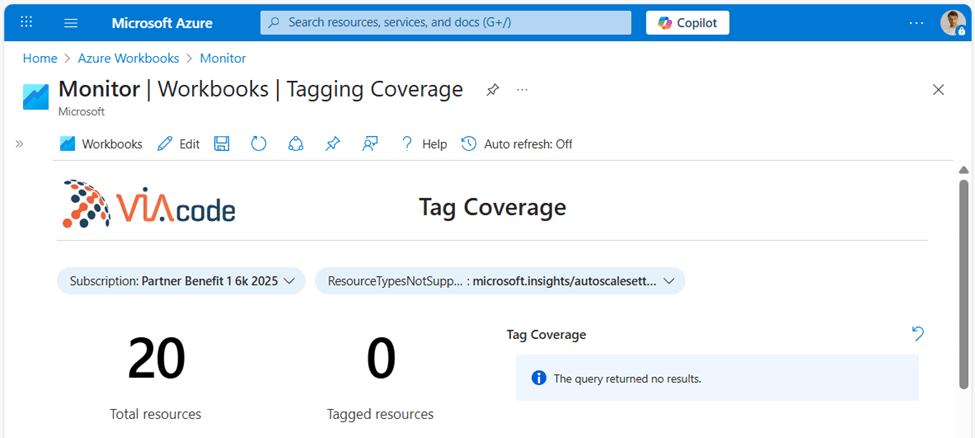
In “Resources without Provided Tag”, you see each resource type and exactly which resources lack either the Application or Environment tag.

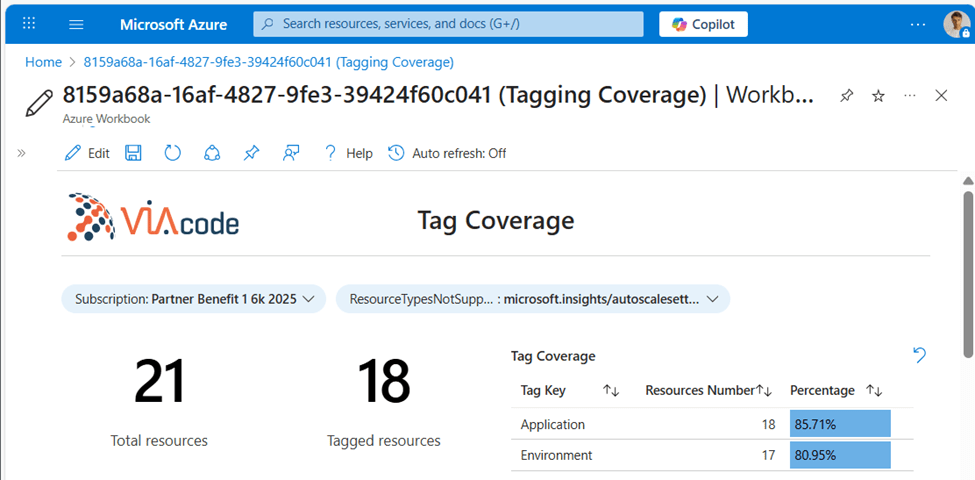
Lets tag resources manually or automate with PowerShell. After, refresh the workbook—now you discover 3 resources still untagged and an overall coverage of 80 %, which you’ll want to drive to 100 %.
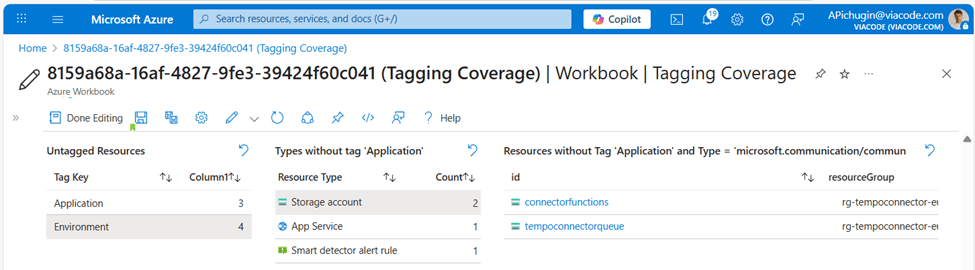
Drill back into “Resources without Provided Tag” to see that two Storage Accounts are missing the Environment tag. Correct those, and coverage hits 100 %.
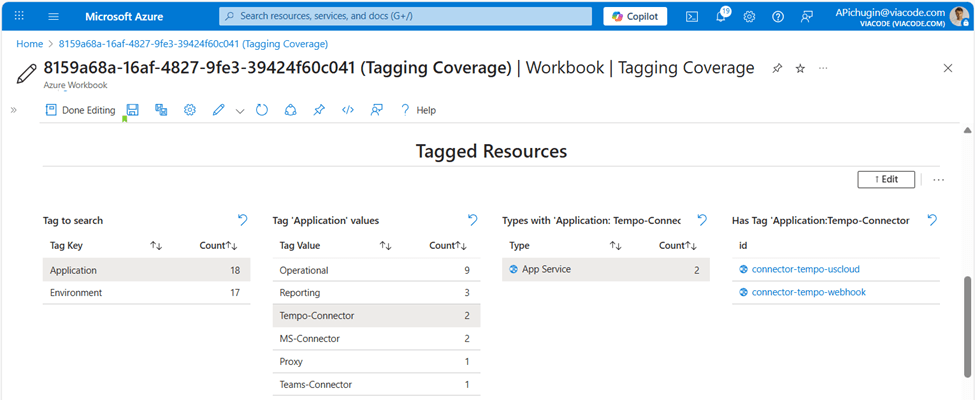
Once fully tagged, the workbook becomes your launchpad—for example, you can instantly list all App Service instances where Application=Tempo-Connector.
Conclusion
I use this Azure Workbook as the first stop whenever I onboard a new subscription. It saves immense time navigating sprawling resource inventories and gives managers a clear, data-driven view of tagging health from day one.






















 Artem Pichugin